Hi @mr-oodler,
I was a little unclear exactly what you were after with the Prompt 3 part. However, I have tried to demonstrate what I think it is that you are trying to do. It could be way off.
Okay, so here is a sheet example I created; I took two products from Amazon to use as an example.
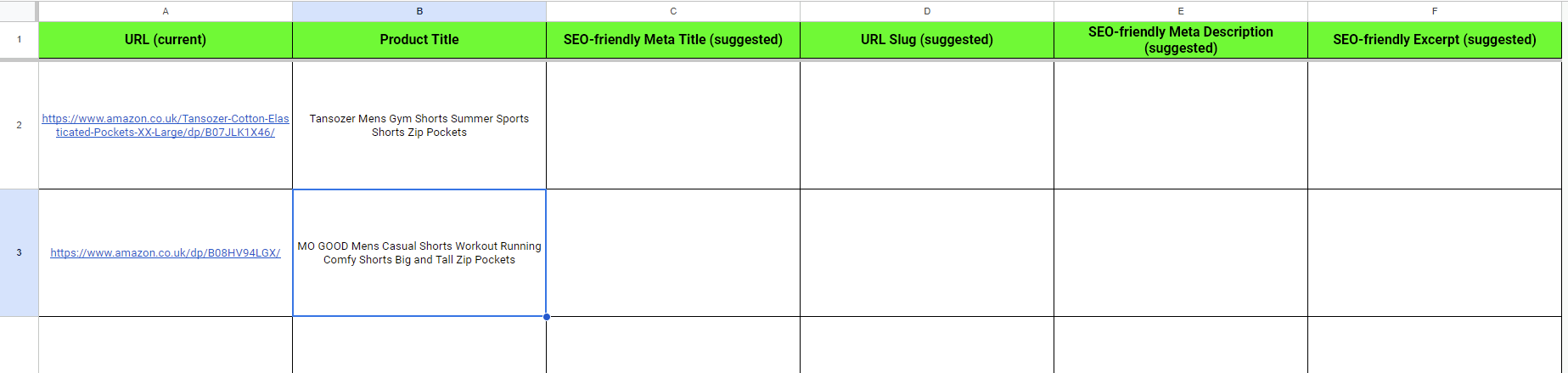
Things To Note:
- Look at the Header/Title Row of each column; these are important to note for some of our steps as these are what we will target for our actions.
- I have only added two rows for the example, but you could easily add 100, and it would do the same, but remember it will only poll 10 each run. You can see we have added a URL (which isn’t needed in this example, but it was just for me to keep track of the product used). Mainly, we are interested in the Product Title here.
This next part shows how the sheet columns correspond to the Trigger (for testing our sample data) and, mainly, the Update Row.
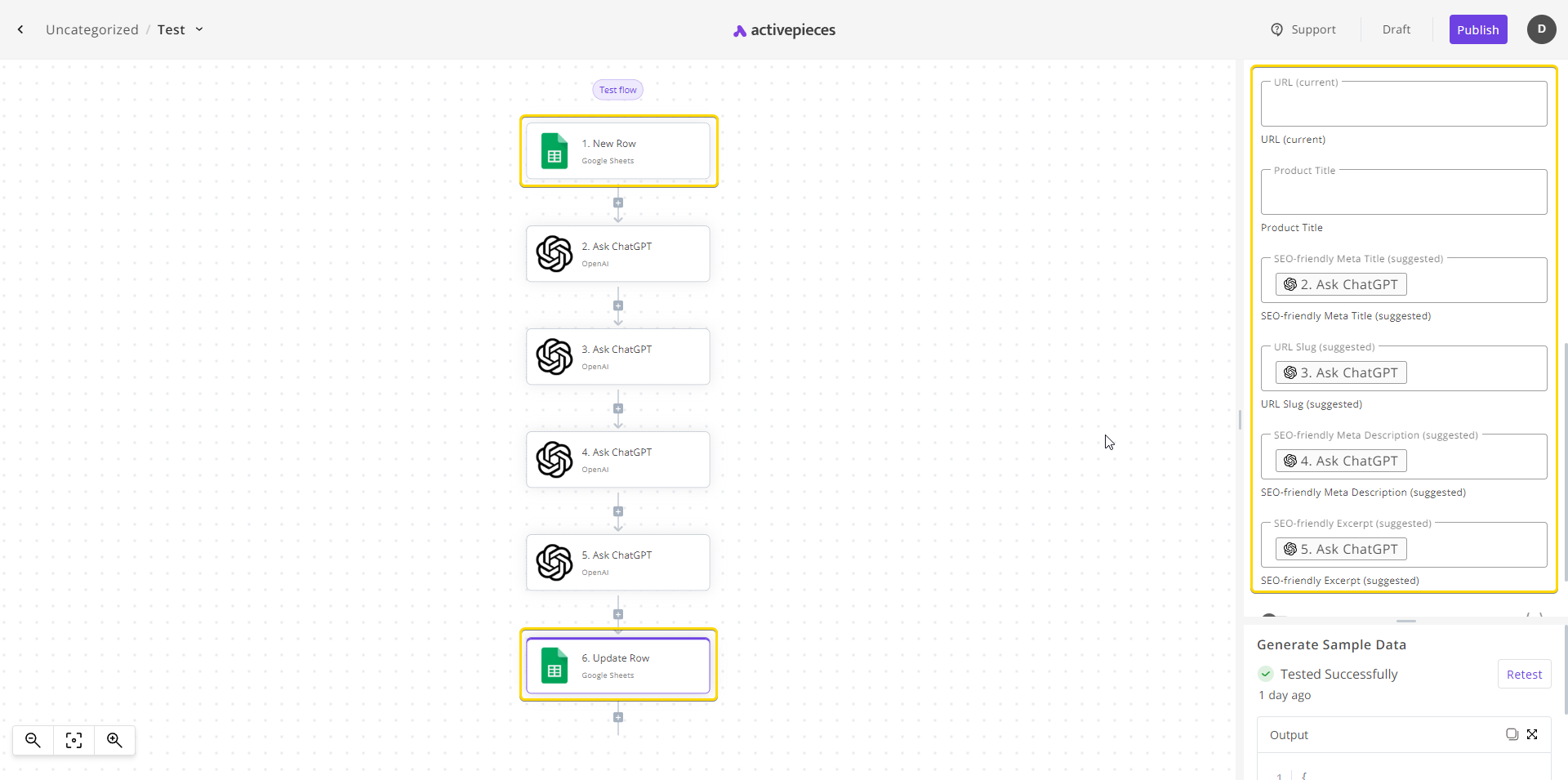
As you can see, we can verify all of our columns do exist, great!
But before we can output, we must go back a few steps to create our actions in between, which will be for asking Chat GPT to do something.
Here is what my prompts are doing:
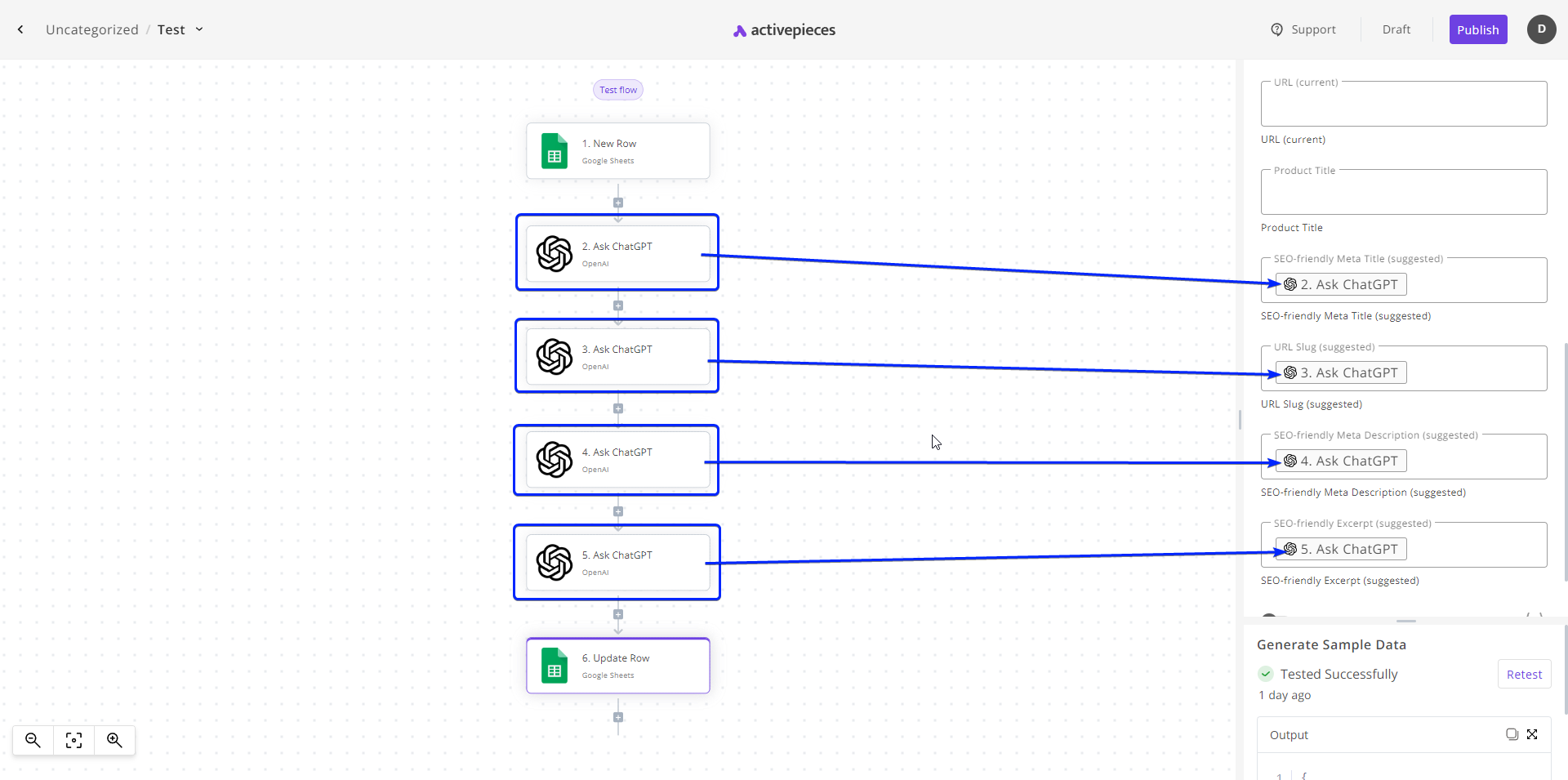
- Step 2: - This asks Chat GPT to create an SEO-friendly Meta Title based on the 1. New Row values B (which in our case is the Product Title we set in the sheet).
- Step 3: - This asks Chat GPT to create an SEO-friendly URL slug based on the 1. New Row values B (which, again, is our Product Title).
- Step 4: - This asks Chat GPT to create an SEO-friendly Meta Description on the 1. New Row values B (which uses our Product Title).
- Step 5: - This asks Chat GPT to create an SEO-friendly Excerpt on the 1. New Row values B (which, you guessed it, uses our Product Title).
Note: For this simple example, I just used to product title for every prompt. In your case, you could feed the results from each Chat GPT prompt into the next Chat GPT prompt to use instead. You would enter it similar to how you enter New Row values B, except you would click a prior Chat GPT step and input the result from that instead, which the next Chat GPT step would use as context.
Finally, we are up to the Update Row action. Below, you can see that we set the result from each Chat GPT action to the relevant row for each of the columns.
Then, we run our Task after publishing it. We can then see that it has run multiple requests and created data for multiple product data simultaneously.
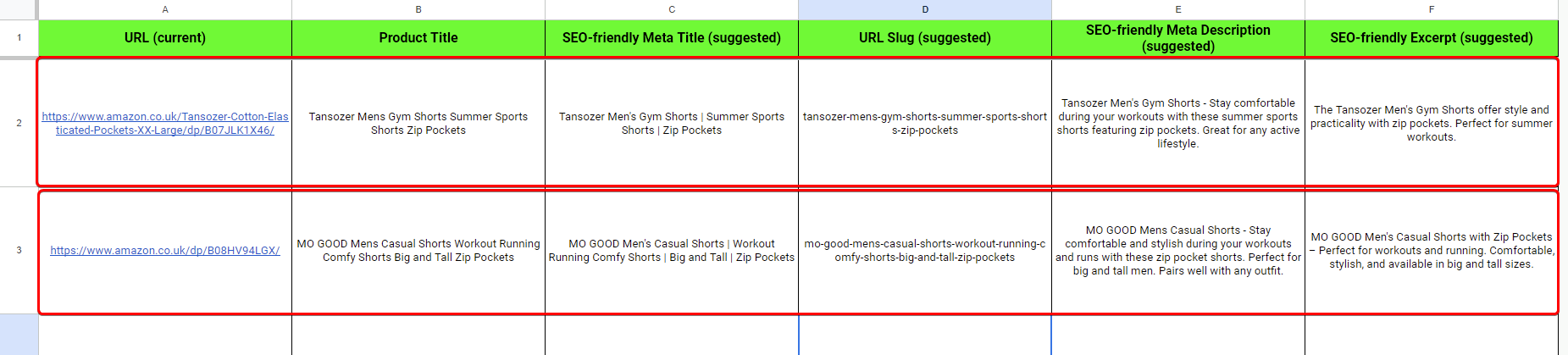
(But remember, as stated, it will only poll 10 on each run. Sometimes, Chat GPT requests can time out or fail. If this happens, then you can go to Runs to see the failed ones, and by clicking on them, it will take you into the flow, where you can click through the steps to see which ones failed. Then, to get your task to try to create these again, just repaste them as new rows under all of the completed rows).
Hopefully, this helps or at least points you in the right direction. As I said, I was a little confused with your third step.
Kind Regards